
AI Ops Guide
Create HubSpot Workflows with AI: Native vs Daeda AI
Build HubSpot workflows with AI: start with Breeze, or use Daeda AI for a reviewed implementation plan. See an example, prerequisites and pre-launch checks.
On this page
You can create HubSpot workflows with AI using HubSpot’s native Breeze Assistant or a tool such as Daeda AI. Both can help you move from an idea to a draft. The useful question is where you want to design, review and apply the work.
For a workflow you want to finish in HubSpot’s editor, start with Breeze. For work that begins with a portal investigation and needs several supported changes reviewed together, Daeda AI offers a saved Write Plan inside HubSpot.
Start with the native builder when it fits
HubSpot documents Create workflow > With AI: describe the trigger and intended action, then open the generated workflow in the editor to continue configuring it. You can edit the result. Our earlier description of the native builder as an uneditable, one-shot tool was incorrect. See HubSpot’s workflow creation guide.
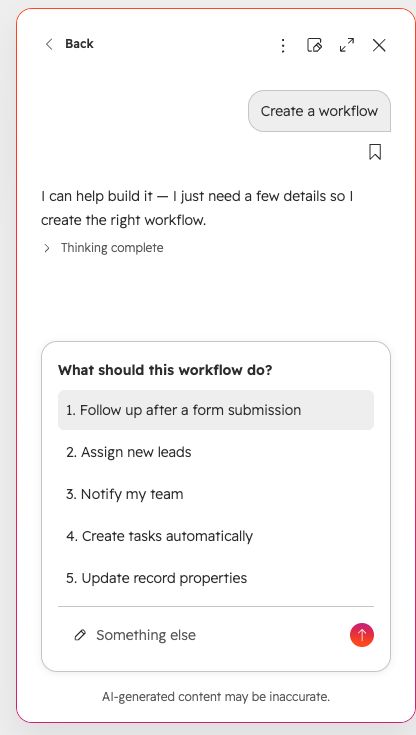
The native With AI starting screen in a HubSpot test portal, captured 10 September 2026. This is the initial brief, not a generated or published workflow. View full size.
A useful first prompt is:
When a contact submits our demo request form and has an owner, create a follow-up task for that owner. Keep re-enrollment off. I want to review the workflow before publishing it.
Check the resulting form, owner handling, task details and enrollment settings. A well-written prompt is a brief, not proof that the generated workflow is correct.
When a Daeda AI Write Plan helps
Some workflow jobs start before the workflow exists. You may need to find the right properties, inspect existing automations and decide which assets to reuse. Daeda AI lets you investigate that context in your AI client, then prepare supported changes as a plan you review in HubSpot.
That is the distinction: a saved, inspectable set of proposed operations. It is not a claim that native HubSpot cannot edit workflows or ask for approval.
MCP itself does not guarantee workflow creation. It is the connection protocol; the server must expose the required operation. Check Daeda AI’s supported workflow operations for the current scope.
Worked example: a renewal follow-up draft
Imagine your team already stores a renewal date but follows up inconsistently. Before creating another automation, establish whether a renewal workflow already exists and how the account identifies its owner.
1. Inspect before proposing changes
Connect the intended portal and check data readiness. Then ask:
In the connected test portal, inspect the renewal-date properties and existing renewal workflows. Identify the relevant object, owner property and any overlapping automation. Report what you found and anything you could not verify. Do not make changes.
Confirm the evidence in HubSpot. A synced data layer may be incomplete or behind the live portal; missing results do not prove an asset is absent.
2. Agree the workflow behaviour
Specify which object enrolls, how renewal timing works, who receives a task and what happens when the owner or renewal date is missing. Decide whether records can re-enroll for later renewals.
Ask the AI to explain ambiguities before drafting. A missing renewal date should not quietly become today’s date, and an unowned account needs an explicit exception path.
3. Request a small, disabled draft
Prepare a Write Plan for one disabled renewal follow-up workflow using the verified property IDs. Include the agreed enrollment rule, task and missing-owner path. Reuse existing assets. Do not enable the workflow, enroll records, send emails or create a new custom object type. Flag any unsupported step instead of substituting another behaviour.
Start with one workflow. If the design needs an additional property or list, review that dependency explicitly before including it. A broader system should be a deliberate decision, not an unexpected addition to the plan.
4. Review the plan in HubSpot
Open Write Plans in Daeda AI and select the draft. Check the portal, proposed operations, exact asset IDs, triggers, actions and warnings. Reject it and request a revision if the design is wrong.
Write-operation controls in Daeda AI. For the draft review screen and execution confirmation, follow the Write Plan walkthrough.
Approving a plan allows its operations to run. It is not a guarantee that every operation will succeed, or an automatic rollback if one fails. Inspect each result before retrying.
5. Test before enabling
Open the created workflow in HubSpot. Confirm it is disabled, then review the paths using dedicated test records: a valid upcoming renewal, missing date, missing owner and a record that should not enroll. Check re-enrollment and existing automation before separately deciding to publish.
Watch the original workflow-creation walkthrough for an example. Use the current capability reference and review screens for today’s supported operations and controls.
Prerequisites and limits
- HubSpot access: the account needs the relevant workflow subscription and the user needs the required permissions. An AI app does not bypass subscription restrictions.
- Connected capabilities: Daeda AI’s workflow creation operation requires automation access. Check the exact operation before assuming an action or enrollment pattern is supported.
- Bridge-backed work: some operations, including workflow-folder management, require the Daeda Bridge extension. Basic workflow creation does not. Check the plan’s requirements.
- Ready context: wait for required synced data before relying on a portal-wide investigation. Verify important findings against HubSpot.
- Human review: keep enablement, enrollment, email sends and destructive changes out of an initial draft unless explicitly intended.
The limitations guide explains these boundaries. Daeda AI should not be presented as unrestricted control over every HubSpot feature.
Choose the review flow you need
| If the job is… | Start here |
|---|---|
| Generate a workflow and finish it in HubSpot | Breeze and the native workflow editor |
| Investigate existing automation before planning changes | Daeda AI’s read-only portal investigation |
| Review several supported implementation operations together | A small Daeda AI Write Plan |
| Use an unsupported action or configuration | Configure it manually or narrow the plan |
View Daeda AI’s plans if the investigation-and-plan approach fits your work. For the broader distinction between native access and saved plans, read HubSpot MCP vs Daeda AI.
Native workflow documentation and Daeda AI’s supported-operation reference checked 10 September 2026.
Watch the original workflow walkthrough
This is the original recording. Use the current capability reference and review screens for today's supported operations and controls.
A few common questions
Frequently asked questions
Can HubSpot create workflows with AI?
Yes. HubSpot supports creating a workflow with Breeze Assistant and continuing to edit it in the workflow editor. Available actions and workflow types depend on your subscription.
Can I edit a workflow generated by HubSpot AI?
Yes. Open it in the workflow editor to review and change triggers, actions and settings. Native generation is not an uneditable one-shot result.
Does MCP itself create workflows?
No. MCP is a connection protocol. Workflow creation depends on the particular server's exposed operations, your HubSpot subscription and granted permissions.
Does approving a Write Plan also enable my workflow?
Check the operations in the plan. Ask for a disabled draft and exclude enablement or enrollment operations until review is complete. Inspect the resulting workflow in HubSpot before activation.
