
Review And Execute Write Plans
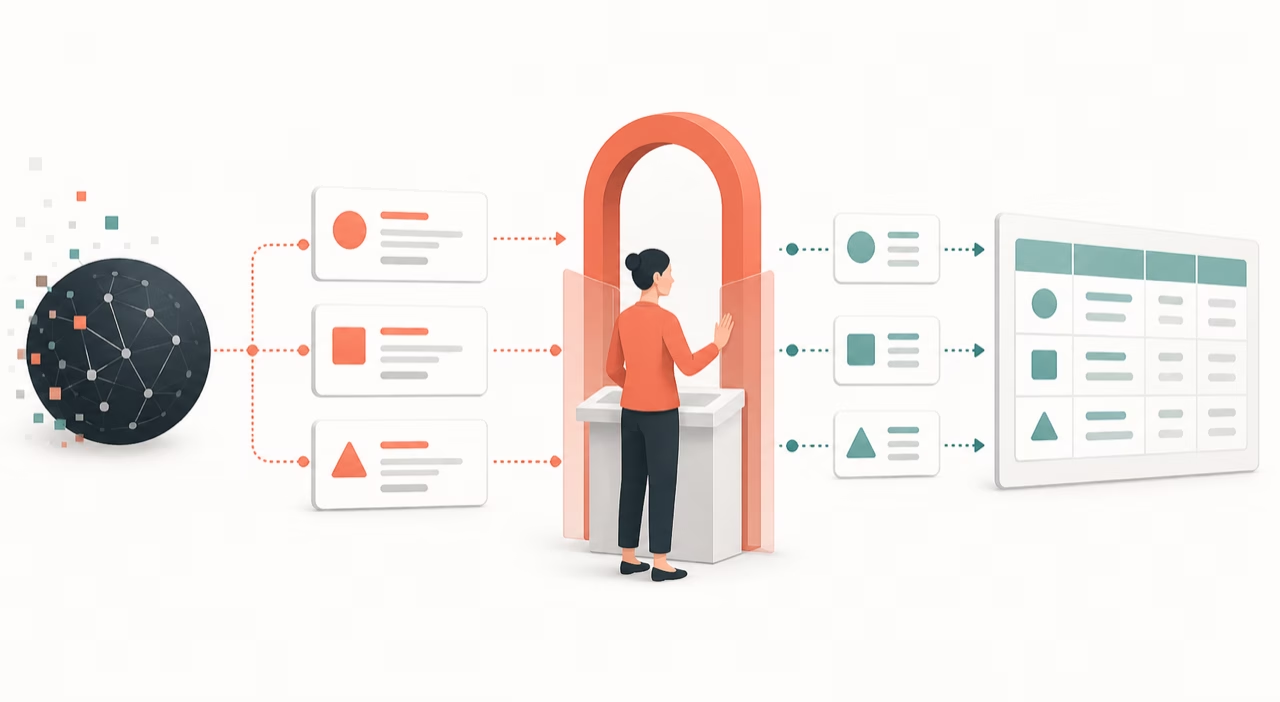
A Write Plan is a proposed set of HubSpot changes. Your AI app prepares the draft, but nothing is applied until a person reviews it in HubSpot and explicitly confirms execution.
Use this guide after connecting your AI app and completing a successful read-only query.
How A Write Plan Moves Through Approval
Section titled “How A Write Plan Moves Through Approval”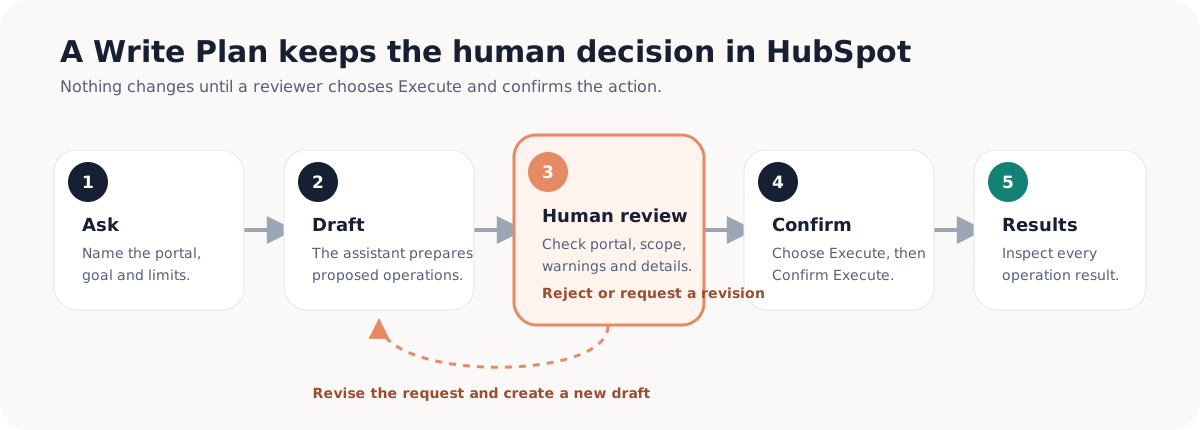
A plan remains a draft until a person approves it. Rejecting a plan returns the work for revision without changing HubSpot.
Prepare A Small First Plan
Section titled “Prepare A Small First Plan”Start with one change that is easy to recognize and remove. Name the portal, the HubSpot area, the intended result, and anything the plan must not do.
Example:
In the Demo portal, prepare a Write Plan to create a static list named Daeda AI Setup Test. Do not execute it.
The assistant should prepare and save a draft. Open Write Plans in Daeda AI, then select the plan with the DRAFT state.
Review Checklist
Section titled “Review Checklist”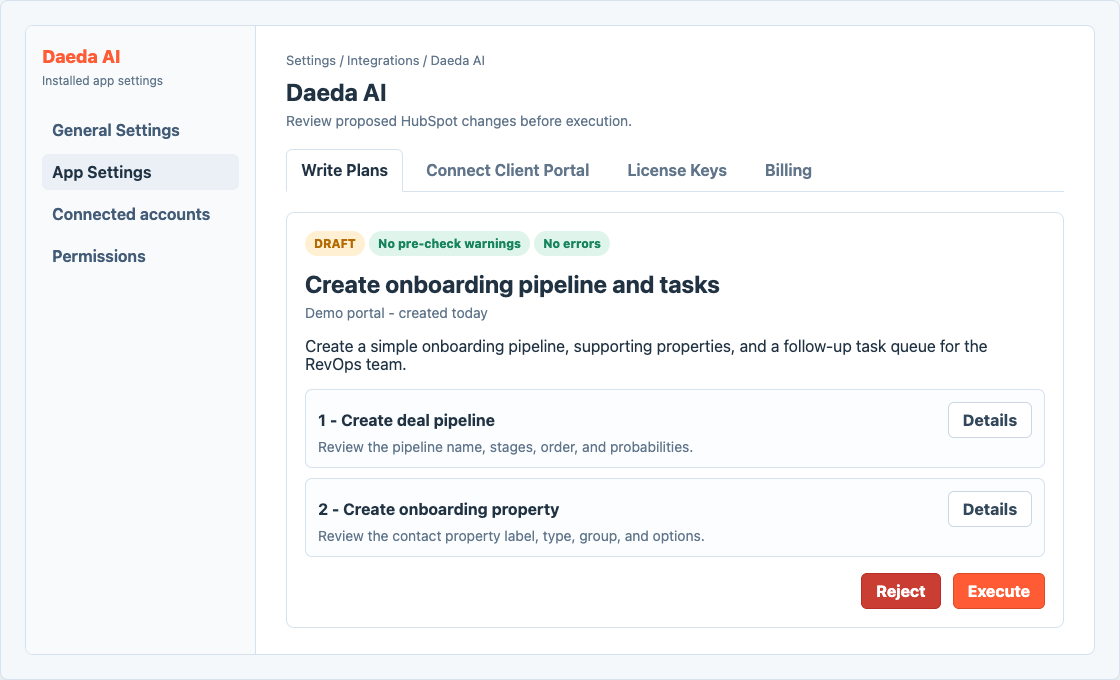
A draft write plan stays reviewable until a user chooses Execute and confirms the action.
Review the plan from top to bottom:
- Portal: confirm the plan targets the correct HubSpot portal.
- State: confirm the plan is still a DRAFT and has not already run.
- Title and description: compare the stated outcome with your request.
- Operations: confirm every proposed create, update, archive, delete, or enrolment action is intentional.
- Warnings: resolve validation issues and missing permissions before execution.
- Bridge: if an operation requires the Daeda Bridge, confirm the extension is connected to the same portal.
- Destructive work: check record IDs, asset names, filters, and dependencies especially carefully.
What To Review
Section titled “What To Review”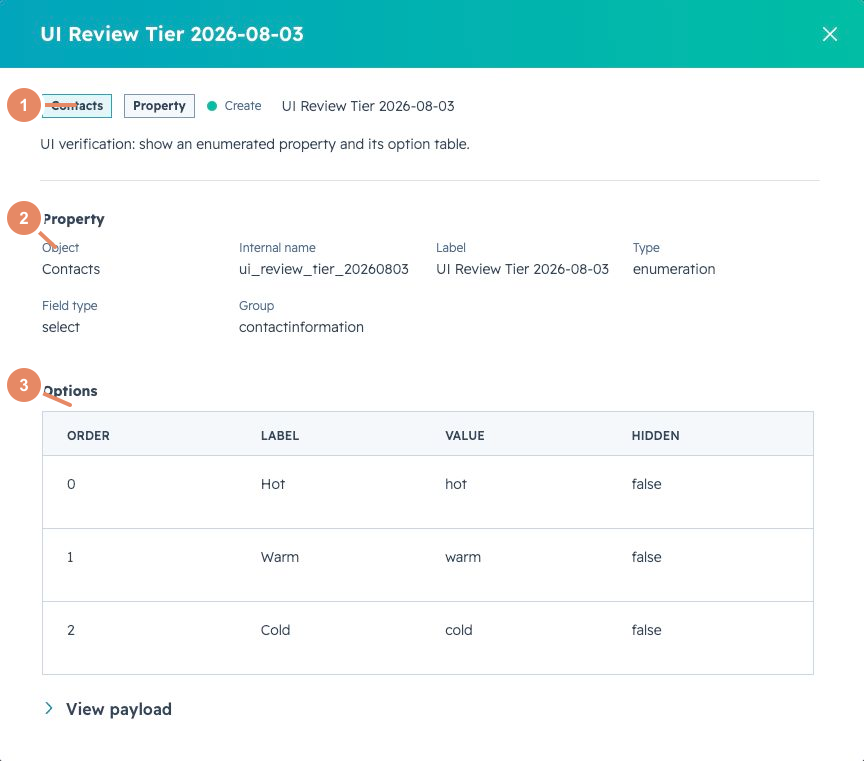
Open important operations and compare their exact configuration with the change you requested.
Open Details for important operations. The detail view shows the exact HubSpot configuration that Daeda AI intends to apply, such as property options, workflow steps, filters, pipeline stages, record values, or report settings.
For create actions, check names, object types, configuration, and ownership. For updates, verify both the existing target and every field being changed. For archive or delete actions, confirm the asset identity and downstream impact.
Execute Or Reject
Section titled “Execute Or Reject”Choose Reject when the portal, assets, permissions, or proposed configuration are wrong. Rejected plans remain visible for audit, but they do not change HubSpot. Tell your AI app what needs to change and ask for a revised plan.
Choose Execute only after the checklist is complete. Read the confirmation message, then choose Confirm Execute. Keep the plan open while its operations run.
Verify The Result
Section titled “Verify The Result”Review every operation result after execution. A plan can contain several operations, so do not assume that one successful result means the whole plan completed cleanly.
Open important created or updated assets in HubSpot and confirm they behave as expected. If an operation failed or the plan partially completed, check what already changed before retrying so that you do not create duplicates.
Plan States
Section titled “Plan States”| State | Meaning |
|---|---|
| DRAFT | Ready for review. No HubSpot changes have been applied yet. |
| EXECUTED | Execution completed and results are available on the plan. |
| EXECUTING | Execution has started and the plan is being applied. |
| FAILED | Execution failed or did not complete cleanly. Review operation results and errors. |
| REJECTED | A user rejected the plan instead of executing it. |
| SUPERSEDED | A newer plan replaced this one. |
For more examples, continue to Requesting Good Plans or Examples And Recipes. Use Troubleshooting if a draft does not appear or execution fails.