
Advanced Routing
Distribute records between reps using reusable routing profiles. A profile decides who receives records and in what shares, which reps to skip, how many records each rep can take, which records go to which people, and what happens when a rep doesn’t respond.
Advanced Routing supports contact, company, deal and ticket workflows. It can return an owner for a later workflow step or directly overwrite an owner property on the enrolled record.
When to use Advanced Routing
Section titled “When to use Advanced Routing”Use Advanced Routing when you need any of the following:
- Weighted shares. Reps should receive different shares of incoming records.
- Team pools. Route to HubSpot teams and pick up joiners and leavers automatically.
- Territory and rule-based routing. Send records to different people based on their properties, such as country, postcode, lead source or deal amount.
- Capacity limits. Stop assigning to a rep who already has too many open records or has had enough new ones today or this week.
- Reassignment when a rep doesn’t respond. Move a record to the next rep if nobody logs activity on it within a set time.
- Central settings and reporting. Reuse one configuration across workflows and compare target shares with actual assignments.
Multiple workflow actions can use the same profile, but each action maintains its own assignment balance. Assignments in one action do not count towards another action’s distribution.
For a simple rotation, see Round Robin. To pause a workflow until someone becomes available, use Wait Until Available. Advanced Routing chooses an owner when it runs; it does not wait for an unavailable rep.
To see how weights, rules, limits and reassignment interact before you set up a profile, try the Smart Lead Simulator. It runs the same routing engine in your browser with sample reps and records.
Before you start
Section titled “Before you start”-
Install Smart Lead & Ticket Routing in your HubSpot account.
-
Decide whether the profile routes to individual users or to HubSpot teams.
-
Check your reps’ HubSpot Available/Away status, out-of-office settings and working hours if you plan to use availability checks.
-
Enable Direct Update permissions if you will use any of these:
- direct-update mode, which writes the owner to the record
- routing rules
- open-record limits
- reassignment when a rep doesn’t respond
These features read or write CRM records, so they fail with a permissions message until the permissions are granted, even in output mode. Weights, teams, availability checks and new-assignment limits work without them.
1. Create a routing profile
Section titled “1. Create a routing profile”Open the installed app’s Settings, select the Advanced Routing tab, then choose Create profile on the Profiles tab.
The profile editor is a single page. Each section shows a one-line summary of its settings. Choose Configure, Add rule or Edit to open a side panel, then choose Done to apply the panel’s changes or Cancel to discard them.
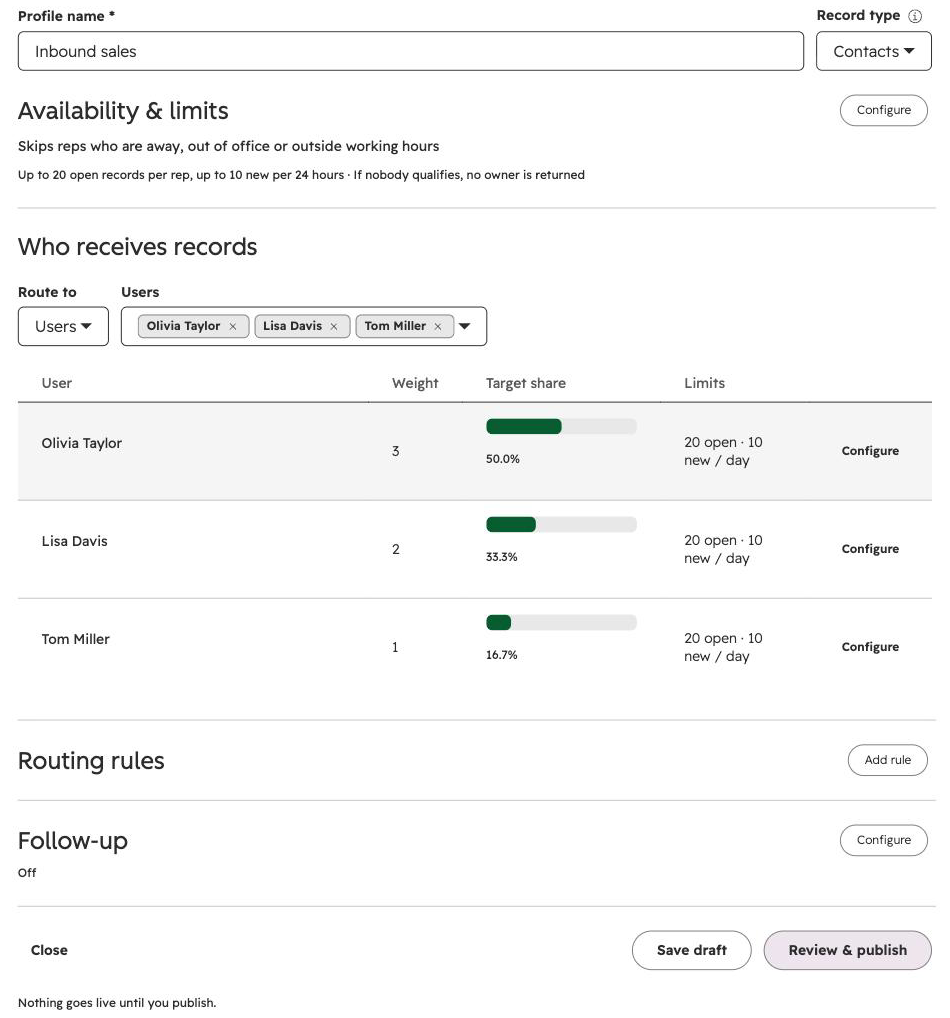
Choose Save draft at any time. Nothing goes live until you publish. For a profile that is already published, the current version stays live while you edit.
Profile name and record type
Section titled “Profile name and record type”Give the profile a name you will recognise in your workflows, such as Inbound sales, and choose its Record type:
| Record type | Use it when |
|---|---|
| Any record type | The profile should work the same in contact, company, deal and ticket workflows. Routing rules are not available. |
| Contacts, Companies, Deals or Tickets | You want routing rules based on that record type’s properties. |
A profile for a specific record type can still be selected in workflows for other record types. Its rules only run in workflows for the record type you chose; elsewhere, records go to the people under Everyone else. Switching back to Any record type removes the profile’s rules.
Availability & limits
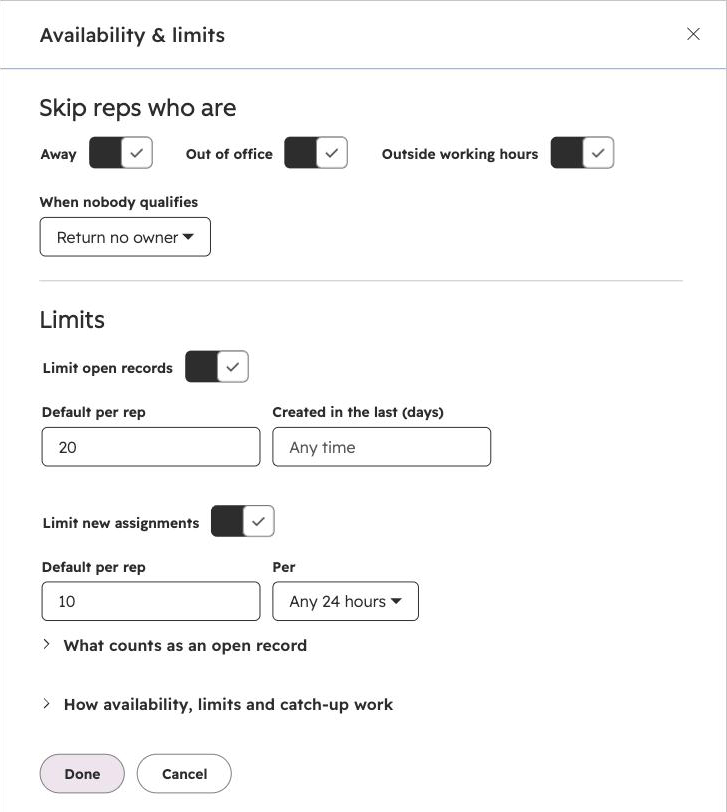
Section titled “Availability & limits”This section sits at the top of the editor. Choose Configure to set:
- Skip reps who are: Away, Out of office and Outside working hours. All three are on for a new profile. A rep is skipped if any enabled check applies to them, or if HubSpot has no data for an enabled check. Turning all three off stops skipping reps for availability.
- Limits: turn on Limit open records, Limit new assignments or both, and set the default per rep. See Capacity limits.
- When nobody qualifies: what happens when no rep can take the record.
| When nobody qualifies | Result |
|---|---|
| Return no owner | Complete without an owner. Handle this outcome in a workflow branch. |
| Select a fallback owner | Assign a fixed Fallback user, who must still be an active user with an owner ID. |
| Fail the action | Report a failed routing outcome for investigation. |
A fixed fallback bypasses availability checks and limits. Choose someone who should receive records even when they would not qualify for the weighted pool. Fallback assignments do not consume weighted turns.
Who receives records
Section titled “Who receives records”Set Route to to Users or Teams, then choose them from the list. A profile routes to users or to teams, not both. Switching removes the other kind from the profile. An older profile that includes both opens in users mode with a notice asking you to remove the teams.
Each person or team gets a row with its weight, its target share and, when limits are on, its limits. Choose Configure on a row to change:
| Setting | What it does |
|---|---|
| Weight | A whole number from 1 to 10000, relative to everyone else. For a team, Weight for each member applies to every member. |
| Max open records | This person’s or team’s open-record limit. Leave it blank to use the default, or enter 0 to pause them. Shown when open-record limits are on. |
| Max new per 24 hours / 7 days | This person’s or team’s new-assignment limit. Blank uses the default and 0 pauses. Shown when new-assignment limits are on. |
| Include extra members | Teams only. Adds the team’s additional (secondary) members to the rotation. |
Choose Remove in the panel to take a person or team off the profile.
Weights are relative: they do not need to total 100. For example:
| Rep | Weight | Target share |
|---|---|---|
| Alex | 3 | 50% |
| Sam | 2 | About 33% |
| Taylor | 1 | About 17% |
With a stable, available pool, this aims for three assignments to Alex, two to Sam and one to Taylor per six weighted assignments. These are shares over time. To cap how many records a rep receives, use capacity limits.
When you route to teams, current members join automatically each time the action runs, so you don’t need to edit the profile when people join or leave. See Teams and routing rules.
Routing rules
Section titled “Routing rules”Routing rules appear once the profile has a specific record type. Choose Add rule to send records whose properties match your conditions to chosen people or teams, for example Country is any of United Kingdom, Ireland → EMEA team.
Rules are checked in order and the first matching rule wins. The Everyone else row sets who receives records that match no rule. A rule’s Send to only offers people or teams already under Who receives records.
See Teams and routing rules for conditions, operators and examples.
Follow-up
Section titled “Follow-up”Choose Configure to turn on Reassign when the rep doesn’t respond. After the wait you set, a record with no response moves to the next eligible rep who hasn’t had it. This works when the workflow action uses direct-update mode.
See Reassignment when a rep doesn’t respond.
Review & publish
Section titled “Review & publish”Choose Review & publish to save the draft and open the review. It shows the profile summary, anything you need to fix before publishing, and the workflows that publishing affects. Choose Publish profile to make the profile live, or Back to editing to make changes.
If the affected-workflow check cannot complete, choose Retry review before publishing. There is no test step in the editor; use the Smart Lead Simulator to explore settings first.
If you choose Close with unsaved changes, you can discard them or keep editing. Your last saved draft is kept.
2. Add Advanced Routing to a workflow
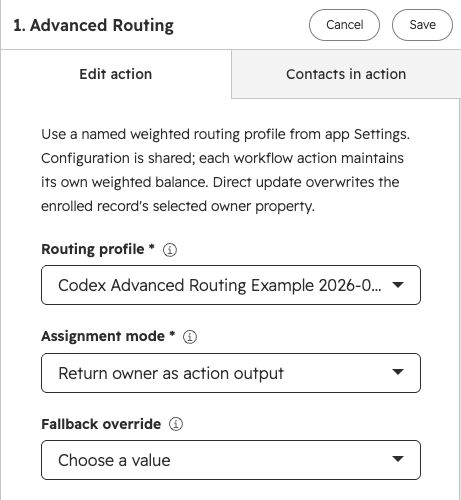
Section titled “2. Add Advanced Routing to a workflow”In a contact, company, deal or ticket workflow, add Advanced Routing and configure:
| Field | What to choose |
|---|---|
| Routing profile | The published profile to use. |
| Assignment mode | Return owner as action output, or directly overwrite owner property. |
| Owner property to overwrite | In direct-update mode, the owner property on the enrolled record. |
| Fallback override | Use the profile fallback, return no owner, select a fixed fallback owner, or fail the action. |
| Fixed fallback user | The active user to use when the override selects a fixed fallback. |
Leave the fallback override unset, or choose Use profile fallback, to inherit the profile’s fallback.
Return owner as action output
Section titled “Return owner as action output”This mode selects an owner without changing the record. Use the returned owner in a later workflow step.
Example contact workflow:
- Enrol contacts that need assignment.
- Add Advanced Routing, select your published profile and choose Return owner as action output.
- Branch on Owner returned successfully being true.
- On the successful branch, add Edit record, select Contact owner, and use the Advanced Routing Selected owner ID output as its value.
- On the other branch, handle the unassigned record according to your process.
Use assigned_owner_id for the assignment step. The separate selected_owner_id output can also exist after a failed direct update, so it is not proof of success.
Open-record limits in output mode count records by the standard owner property (for example Contact owner), because the app can’t know which property a later step will write.
Directly overwrite owner property
Section titled “Directly overwrite owner property”Choose this mode to select the owner and update the record in the same action. Select the Owner property to overwrite and make sure Direct Update permissions are enabled.
Existing owner values are overwritten. If you only want to assign unowned records, add an enrolment condition or branch that checks the owner property before Advanced Routing runs.
Use Owner property updated to confirm the update succeeded. A selected owner alone does not confirm that the record changed.
Reassignment when a rep doesn’t respond only works in this mode.
How weighted distribution behaves
Section titled “How weighted distribution behaves”Skipped reps and catch-up
Section titled “Skipped reps and catch-up”Reps who are unavailable or at a limit are skipped, but keep earning their share of assignment credit as successful weighted turns occur. When they can take records again, they can receive consecutive records while the distribution catches up.
For example, a rep who is out of office may receive several assignments in succession after returning. This is expected catch-up behaviour, and Activity labels those selections as catch-up. Weights alone do not limit a rep’s workload; use capacity limits for that.
Separate balances and profile changes
Section titled “Separate balances and profile changes”- Each workflow action has its own balance, even when several actions share a profile.
- Within an action, each routing rule keeps its own balance, separate from Everyone else.
- Switching profiles starts or resumes that profile’s separate balance for the action.
- Weight changes affect future shares while preserving existing assignment credit.
- Newly added users, including new team members, do not receive historical credit for assignments before they joined.
- Fixed fallbacks, no-owner outcomes and failed writes do not consume weighted turns.
Edit, publish and archive profiles
Section titled “Edit, publish and archive profiles”Open a profile to edit it. The published version remains live while you save draft changes. Review affected workflows before publishing: new executions automatically use the newly published version. Existing in-flight executions and retries keep their original version and selection.
Use the profile’s More menu to archive it. Existing linked actions continue using its last published version. Archived profiles still appear in the workflow’s profile list, labelled as archived, so existing actions keep a valid selection; don’t choose them for new actions. Archiving is not a way to stop an existing workflow. Archived profiles are hidden on the Profiles tab by default; enable Show archived profiles to find them.
Monitor routing
Section titled “Monitor routing”The Advanced Routing tab in Settings has three monitoring tabs:
- Distribution compares target and actual shares by profile, workflow and routing action.
- Activity lists every execution with its candidates, the rule it matched and the update result.
- Follow-ups lists every check for a rep’s response and what happened.
See Monitoring Advanced Routing.
Action outputs
Section titled “Action outputs”| Output | Label in HubSpot | Meaning |
|---|---|---|
assigned_owner_id | Selected owner ID | Selected owner ID returned on a successful output or direct update. Use this in a later owner assignment step. |
selected_owner_id | Selected owner ID (including failed updates) | Selected owner ID, including when the subsequent direct update failed. |
assigned_user_name | Selected user name | Name of the selected user, when available. |
user_returned | Owner returned successfully | True when the owner was successfully returned or the direct update succeeded. |
property_updated | Owner property updated | True only when the direct owner-property update succeeded. |
fallback_used | Fallback used | Whether the action used its fallback. |
profile_version | Effective profile version | Profile version used for this execution. |
execution_id | Execution history ID | Identifier for finding the execution in Activity. |
matched_rule | Matched rule name | Name of the routing rule the record matched. Empty when no rule matched and Everyone else was used. |
reason | Outcome reason | Routing outcome or error reason. |
An owner ID may be absent when no owner was selected. Branch on the success outputs before using an owner value. You can also branch on Matched rule name, for example to send a different notification per territory.
Troubleshooting
Section titled “Troubleshooting”| Problem | What to check |
|---|---|
| Profile is missing from the workflow picker | Publish it first. |
| Publish is unavailable | Fix the items listed under Fix before publishing and retry the affected-workflow review if it failed. |
| Routing rules section is missing | Set the profile’s Record type to Contacts, Companies, Deals or Tickets. Rules are not available for Any record type. |
| Rules are ignored in a workflow | Rules only run in workflows for the profile’s record type. Check the workflow’s object type and the Matched rule in Activity. |
| A record went to Everyone else unexpectedly | Check the record’s property values against each rule’s conditions, and the rule order: the first match wins. |
| The action fails with a permissions message | Enable Direct Update permissions. Rules, open-record limits and follow-up need them even in output mode. |
| A user is always skipped | Check each enabled availability check, their limits, and whether their limit is 0 (paused). Inspect their candidate reasons in Activity. Missing availability signals also cause a skip. |
| A returning user receives several records in a row | This can be catch-up for credit retained while unavailable or at a limit. |
| Actual shares differ from targets | Check availability, limits, rules, date range, profile versions and pending outcomes. Small samples can differ from long-term targets. |
| An unavailable fallback receives a record | Fixed fallbacks deliberately bypass availability checks and limits. |
| An owner was selected but the property did not change | In output mode, check the later assignment step. In direct-update mode, check permissions, property compatibility and the update result in Activity. |
| A record wasn’t reassigned | See follow-up troubleshooting. |
| A manual retry succeeded but the workflow is still stopped | The retry repairs the assignment only. Check the workflow’s status in HubSpot separately. |
Related guides
Section titled “Related guides”- Teams and routing rules - route to HubSpot teams and send records to different people by their properties.
- Capacity limits - cap open records and new assignments per rep.
- Reassignment when a rep doesn’t respond - move records on after a set wait.
- Monitoring Advanced Routing - Distribution, Activity and Follow-ups.
- Actions overview - choose a routing or availability action.
- Round Robin - configure a simple rotation.
- Check Availability - check current availability for workflow branches.
- Wait Until Available - pause until somebody qualifies.