
Teams and Routing Rules
An Advanced Routing profile can route to HubSpot teams instead of individual users, and can use routing rules to send different records to different people.
Route to teams
Section titled “Route to teams”In the profile editor, under Who receives records, set Route to to Teams and choose one or more HubSpot teams.
Each time the action runs, the app reads the team’s current members from HubSpot. People who join or leave the team are picked up automatically, within about a minute, without editing or republishing the profile.
- Deactivated users are left out, as are HubSpot app service accounts.
- Each member joins with the team’s settings. Choose Configure on the team’s row to set Weight for each member and, when limits are on, the team’s limits. These apply to every member individually: a team open-record limit of 20 means 20 open records per member, not 20 for the team.
- Extra members. If the team has additional (secondary) members in HubSpot, the panel offers Include extra members to add them to the rotation too.
- Overlapping teams. A rep who belongs to more than one selected team joins the rotation once, with the settings of the first of those teams in the profile.
- Deleted teams contribute nobody. Remove them from the profile.
The roster shows each team’s approximate share across its current members, for example ~25.0% across 4 members.
A profile routes to users or to teams, not both. If you need specific people alongside a team, create a HubSpot team for them, or route to users and select everyone individually.
Routing rules
Section titled “Routing rules”Routing rules send records to different people based on the enrolled record’s properties. Use them for territories, segments or specialist queues.
Rules need:
- A profile Record type of Contacts, Companies, Deals or Tickets. Rules read properties of that record type, so they are not available for Any record type.
- Direct Update permissions, so the app can read the record’s properties. Without them, the editor can’t list properties and the action fails with a permissions message.
How rules are applied
Section titled “How rules are applied”- When the action runs, the app reads the record’s properties once.
- Rules are checked in order, from the top. The first rule that matches wins.
- The record is routed among that rule’s people, using their weights, availability checks and limits.
- If no rule matches, the record goes to the people under Everyone else.
If a rule matches but none of its people can take the record, because they are unavailable or at a limit, the record does not move on to later rules or to Everyone else. The profile’s When nobody qualifies setting applies instead. The same happens when no rule matches and Everyone else is empty.
Rules only run in workflows for the profile’s record type. If you use a Contacts profile in a deal workflow, every record goes to Everyone else.
Create a rule
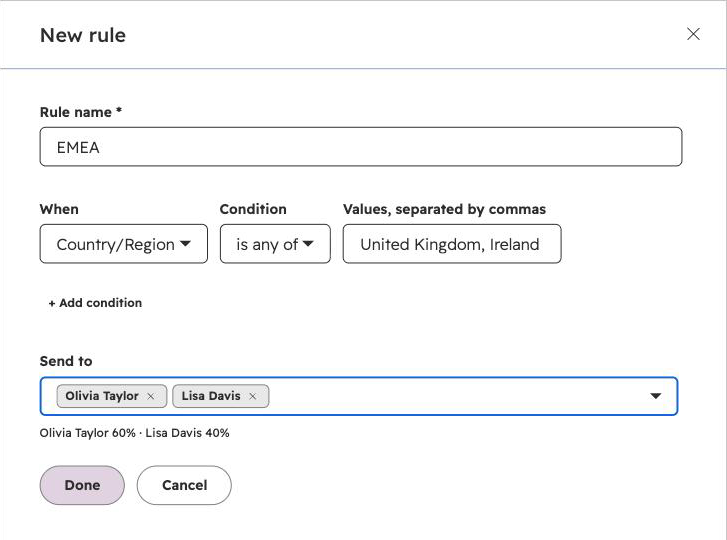
Section titled “Create a rule”Choose Add rule in the Routing rules section. In the panel:
- Enter a Rule name. It appears in Activity and in the Matched rule name action output.
- Build a condition: choose a property, a Condition and its Values.
- To add more conditions, choose + Add condition (up to 10), then set Match to All conditions or Any condition.
- In Send to, choose who receives matching records. Only people or teams already under Who receives records are offered, so add them there first.
- Choose Done.
Each rule is listed as a one-line summary, such as Lead Status is any of New, Open → Olivia, Jack. Use the arrows to change the order, Edit to change a rule, and Remove rule in its panel to delete it. A profile can have up to 25 rules.
Set who receives unmatched records in the Everyone else row at the bottom of the list.
Conditions
Section titled “Conditions”| Condition | Matches when the property value |
|---|---|
| is any of | Equals one of the listed values. For multiple-checkbox properties, any selected option is listed. |
| is none of | Equals none of the listed values. An empty value also matches. |
| contains any of | Contains any of the listed text. |
| starts with any of | Starts with any of the listed text. Useful for postcode or ZIP code prefixes. |
| is known | Has any value. |
| is unknown | Is empty. |
| is greater than | Is a number greater than the one you enter. |
| is less than | Is a number less than the one you enter. |
- Text comparisons ignore upper and lower case and surrounding spaces.
- For dropdown, radio and checkbox properties with is any of or is none of, pick values from the list. Otherwise, enter values separated by commas.
- An empty property only matches is none of and is unknown.
- If the editor can’t load properties, you can type property internal names instead.
Weights, limits and shares with rules
Section titled “Weights, limits and shares with rules”Each person has one weight and one set of limits across every rule, set in their row under Who receives records. Target shares are calculated separately within each rule’s people. Once a profile has rules, the roster’s Receives column shows which rules, and Everyone else, each person receives records from.
Each rule keeps its own assignment balance, separate from Everyone else and other rules. New-assignment and open-record limits count all of a rep’s records together, whichever rule they came from.
Removing someone from Who receives records removes them from every rule. Removing the last rule sends every roster member all records again.
Changing the profile’s record type between specific types keeps your rules but clears their properties and values, because the new record type has different properties. Switching to Any record type removes the rules.
Examples
Section titled “Examples”Territories by country and ZIP code
Section titled “Territories by country and ZIP code”Profile record type Contacts, routing to users:
| Order | Rule | Condition | Send to |
|---|---|---|---|
| 1 | EMEA | Country/Region is any of United Kingdom, Ireland, France, Germany | Alex, Sam |
| 2 | US West | Postal code starts with any of 9 | Taylor |
| 3 | US East | Postal code starts with any of 0, 1, 2 | Jordan |
| Everyone else | Alex, Sam, Taylor, Jordan |
Prefix matching is plain text matching, so check that prefixes don’t overlap. In UK postcodes, E also matches EH (Edinburgh) and N also matches NE (Newcastle). Put the rule with the longer prefixes first, for example a Scotland rule with EH above a London rule with E.
Large deals to senior reps
Section titled “Large deals to senior reps”Profile record type Deals, routing to teams:
| Order | Rule | Condition | Send to |
|---|---|---|---|
| 1 | Enterprise | Amount is greater than 50000 | Enterprise team |
| Everyone else | Mid-market team |
Branch on the Matched rule name output if the workflow should do something different for enterprise deals, such as notify a manager.
Related guides
Section titled “Related guides”- Advanced Routing - create a profile and add it to a workflow.
- Capacity limits - cap open records and new assignments per rep.
- Monitoring Advanced Routing - see which rule each record matched.