
Troubleshooting
Use this guide when setup, plan review, or execution does not look right.
No Write Plans Yet
Section titled “No Write Plans Yet”Open Write Plans after asking your connected assistant to prepare a HubSpot change. If the list is empty, confirm the assistant is connected with the correct license key and target portal.
Also confirm the plan was created for the same portal you are viewing. Plans are portal-specific, so a plan for another portal does not appear in the current portal’s list.
Extension Status Unavailable
Section titled “Extension Status Unavailable”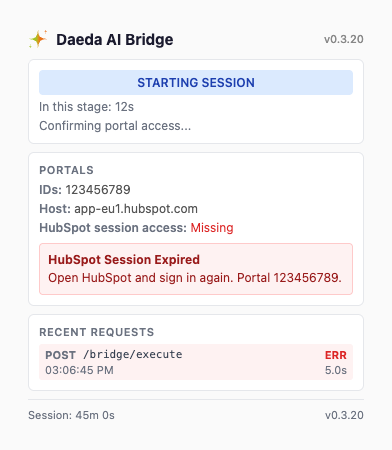
Session warnings help users confirm when they need to reopen HubSpot and sign in again.
If the Write Plans view cannot load extension status, open the Daeda Bridge extension popup and confirm the connection panel shows Daeda AI as connected. Refresh the HubSpot page after reconnecting.
For bridge-backed plans, keep HubSpot open in the same browser profile as the extension. A separate browser profile does not share the needed HubSpot session.
Missing Permissions
Section titled “Missing Permissions”A plan may need scopes that were not granted during the last authorization. Use the re-authorization prompt, then review the plan again before executing.
After re-authorization, reload the plan detail page and confirm the missing-permission message is gone.
Bridge-Backed Action Failed
Section titled “Bridge-Backed Action Failed”Confirm the target HubSpot portal is open in the same browser profile as the Daeda Bridge extension. Check that bridge-backed operations are enabled for the connected portal and that the HubSpot session is still active.
If the extension recently reconnected, refresh the HubSpot page and run the plan again only after the extension shows the correct portal.
Portal Unavailable
Section titled “Portal Unavailable”If HubSpot does not provide a portal ID to the app page, reload HubSpot and reopen Daeda AI from the installed app settings.
If the portal still does not appear, confirm the user account has access to the portal and that Daeda AI is installed there.
Mirror Or Database Not Ready
Section titled “Mirror Or Database Not Ready”Connected portals can show these database states: BUILDING, FAILED, IDLE, PARTIAL, READY. Wait for READY before relying on mirrored data. If the state is FAILED, review the connected portal card and retry setup or contact support.
Plans that only apply simple direct changes can be reviewed while data is building, but plans that depend on rich portal context should wait for READY.
Plan Execution Failed
Section titled “Plan Execution Failed”Open the plan details and review operation results. Some operations can succeed while later operations fail or skip. Use the error message and affected operation to decide whether to retry, revise, or reject the plan.
If a plan partially completed, review HubSpot before retrying. Retrying without checking the completed operations can create duplicate assets or repeat a change.