
Reassignment When a Rep Doesn't Respond
Follow-up checks whether the rep who received a record has responded. If they haven’t within the wait you set, Advanced Routing moves the record to the next eligible rep who hasn’t had it yet.
Requirements
Section titled “Requirements”- The workflow’s Advanced Routing action uses Directly overwrite owner property. Output mode can’t be followed up, because the app doesn’t know which property a later step writes.
- Direct Update permissions are enabled.
- Follow-up is turned on in the published version of the profile.
Records assigned to a fixed fallback owner are not followed up.
Turn on follow-up
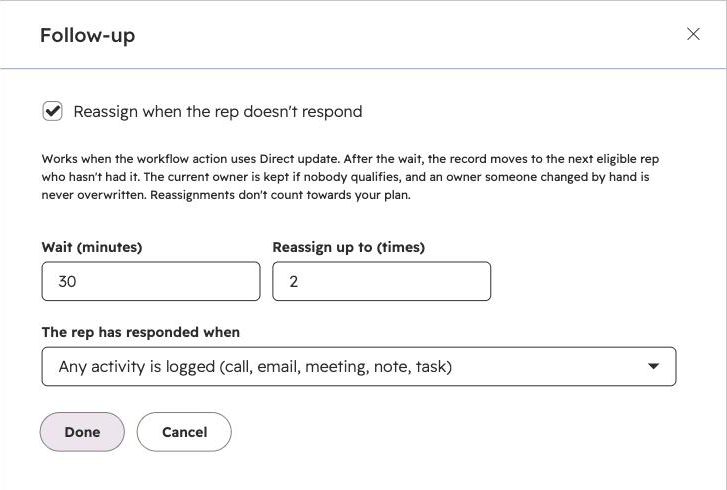
Section titled “Turn on follow-up”In the profile editor, choose Configure next to Follow-up, then tick Reassign when the rep doesn’t respond.
| Setting | Options |
|---|---|
| Wait (minutes) | How long the rep has to respond, from 5 minutes to 10080 (7 days). The default is 30. |
| Reassign up to (times) | How many times one record can be reassigned, from 1 to 5. |
| The rep has responded when | Any activity is logged (call, email, meeting, note, task), or A property changes. |
For A property changes, use Find properties on to choose the record type, then choose the Property. Any change to that property after the assignment counts as a response, whoever makes it. Good choices are properties your reps update when they start work, such as Lead Status.
For Any activity is logged, the app checks HubSpot’s Last activity date and Last contacted properties on the record. If either is later than the assignment, the rep has responded.
Choose Done, then publish the profile. The summary then reads, for example, Reassign after 30 minutes without logged activity, up to 1 time.
What happens after the wait
Section titled “What happens after the wait”When the wait is over, the app reads the record and does one of the following:
| Situation | Result | Follow-ups status |
|---|---|---|
| The owner property no longer holds the assigned rep | Nothing changes. Someone reassigned the record, and manual changes are never overwritten. | Owner changed |
| The rep responded | Nothing changes. | Responded |
| No response, and another rep is eligible | The record moves to the next eligible rep, and a new wait starts for them. | Reassigned |
| No response, but nobody else is eligible | The current owner is kept. | Kept owner |
| The record was deleted, or follow-up was turned off in the profile | The check is cancelled. | Cancelled |
The app checks for due follow-ups every 30 seconds, so a check can run up to about a minute after the wait ends.
Reassignment stops when the record has been reassigned the number of times you chose, or when nobody is left who hasn’t had it.
If the workflow routes the same record again before the wait ends, for example because it re-enrols, the earlier follow-up is cancelled with the outcome Record was routed again.
Who receives a reassigned record
Section titled “Who receives a reassigned record”A reassignment routes the record again with the profile’s current published version:
- Reps who already had the record are excluded, including the rep who didn’t respond.
- Availability checks, capacity limits and routing rules apply as normal.
- The fallback is never used. If nobody else qualifies, the current owner keeps the record.
- The new owner is only written if the record still has the rep who didn’t respond, so a change someone made in the meantime is never overwritten.
For weighted balance, a reassignment is a turn among the reps who haven’t had the record. Reps who already had it neither earn nor spend credit for it, so ignoring a record never earns a rep more records later. The rep who didn’t respond doesn’t get their original turn back.
Reassignments don’t count towards your plan usage. They do count towards new-assignment limits.
Things to know
Section titled “Things to know”- The wait is in real time, not working hours. A 60-minute wait that starts at 17:30 ends at 18:30, even if the rep’s day has finished. If the profile skips reps outside working hours, the reassignment may find nobody eligible and keep the current owner. Use a longer wait if records often arrive late in the day.
- The workflow has already moved on. Reassignment happens after the workflow action has finished, so later workflow steps still see the original owner in the action outputs. To notify the new owner, use a separate workflow triggered by the owner property changing.
- Temporary errors are retried with increasing delays. A follow-up that keeps failing is marked Failed.
Monitor follow-ups
Section titled “Monitor follow-ups”Open Advanced Routing > Follow-ups in Settings to see every check, with the time the record was Assigned, the Record, the Rep, the Attempt number, the Status and the Outcome. Waiting checks show when they are due.
Each reassignment also appears in Activity as its own execution. See Monitoring Advanced Routing.
Troubleshooting
Section titled “Troubleshooting”| Problem | What to check |
|---|---|
| No follow-ups appear | Check that the workflow action uses direct-update mode, that follow-up is on in the published profile, and that the record wasn’t assigned to the fixed fallback. |
| A record wasn’t reassigned | Check the follow-up’s status. Responded, Owner changed and Kept owner all leave the owner as it is. |
| Records are reassigned even though reps are working them | With Any activity is logged, the rep must log activity on that record. Consider A property changes with a property reps always update, or a longer wait. |
| Status is Kept owner | Every other rep had already had the record, or was unavailable or at a limit. |
| Status is Failed | Check the outcome for the error, such as missing permissions. |
Related guides
Section titled “Related guides”- Advanced Routing - create a profile and use direct-update mode.
- Capacity limits - reassignments count towards new-assignment limits.
- Monitoring Advanced Routing - Distribution, Activity and Follow-ups.