
Monitoring Advanced Routing
The Advanced Routing tab in the app’s Settings has three monitoring tabs next to Profiles: Distribution, Activity and Follow-ups.
Distribution
Section titled “Distribution”Open Advanced Routing > Distribution to compare target and actual assignment shares. Filter by Profile, Workflow and Routing action, then select Today, Last 7 days, Last 30 days or All time.
Filters apply automatically. Changing the profile clears workflow and action selections; changing the workflow clears the action. Clear filters retains the selected profile. Refresh updates the results and last-updated time.
All time is the default. Today starts at midnight in your browser’s local timezone; the seven-day and 30-day options are rolling windows based on execution start time.
The report includes all matching executions, not just one page of Activity. Each record’s target is its share of the people it was routed among, so targets stay accurate when a profile uses teams or routing rules, and they reflect the weights of earlier published versions. Fixed fallbacks are excluded from weighted percentages. Returned owners, confirmed direct updates and pending reservations are reported separately: returning an owner does not prove a later Edit record step succeeded.
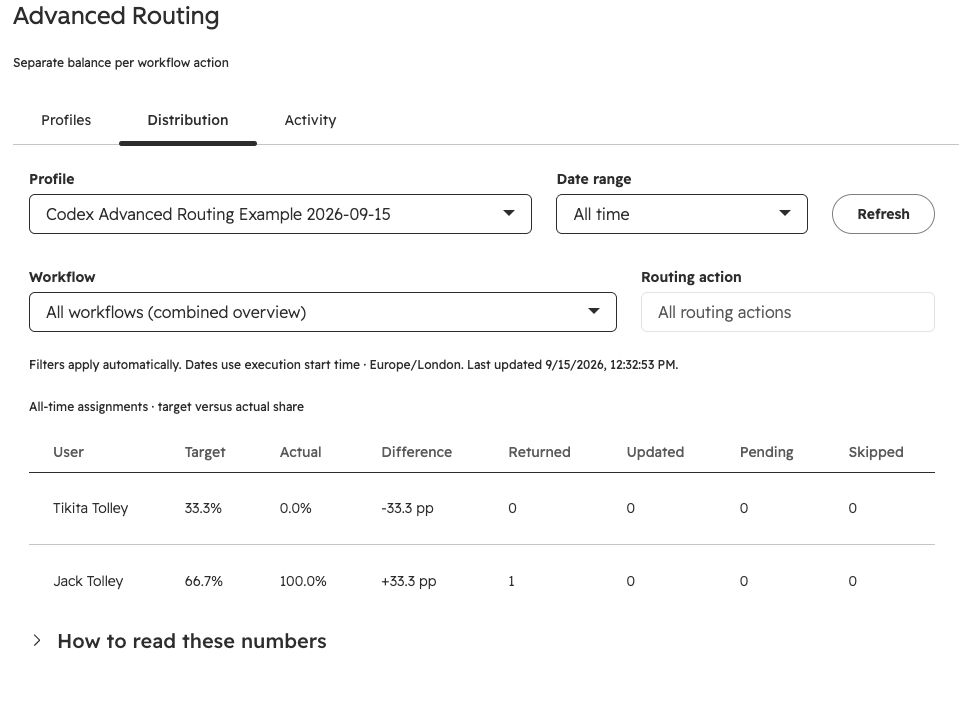
This example contains only one returned owner, so actual shares differ from the targets. Use a larger sample when assessing distribution. Availability, capacity limits and catch-up also move actual shares away from targets for a while.
Activity
Section titled “Activity”Open Advanced Routing > Activity to filter execution history by profile, workflow/action, record, object type or outcome. Results show 25 executions per page.
Expand an execution to inspect:
- The pool it used. Either Matched rule: and the rule name, or No rule matched: default people when the record went to Everyone else.
- Every candidate and why they were chosen or skipped.
- The selection and update result, including whether a fallback was used.
Common candidate reasons:
| Reason | Meaning |
|---|---|
| Highest weighted credit | A normal weighted turn. |
| Catching up on earned assignment credit | The rep was skipped earlier and is receiving records they are owed. |
| Availability status is not available | The rep is marked Away. |
| Out of office, or status unavailable | The rep is out of office, or HubSpot has no out-of-office data for them. |
| Outside working hours, or status unavailable | The rep is outside working hours, or has none set. |
| Reached the open-record limit | The rep is at their open-record limit. |
| Reached the new-assignment limit | The rep is at their new-assignment limit. |
| Already had this record without responding | Excluded from a reassignment. |
| Selected the fixed fallback owner | Nobody qualified and the fallback owner was used. |
| No eligible user; no owner returned | Nobody qualified and the fallback returns no owner. |
Reassignments after a rep didn’t respond appear as their own executions.
Retry pending updates
Section titled “Retry pending updates”Pending direct updates can be retried from Activity. A manual retry repairs the saved assignment; it does not independently advance a stopped HubSpot workflow. Output-mode retries must originate in HubSpot so the workflow receives the action outputs. Pending executions are not automatically replayed if HubSpot stops retrying.
Follow-ups
Section titled “Follow-ups”Open Advanced Routing > Follow-ups to see each check for a rep’s response. Each row shows when the record was Assigned, a link to the Record, the Rep, the Attempt number, the Status and the Outcome.
| Status | Meaning |
|---|---|
| Waiting | The wait hasn’t ended yet. The outcome shows when the check is due. |
| Checking | The app is checking the record now. |
| Responded | The rep logged activity or changed the chosen property. |
| Reassigned | Nobody responded, so the record moved to another rep. |
| Owner changed | Someone else changed the owner, so the app left it alone. |
| Kept owner | Nobody else was eligible, so the current owner kept the record. |
| Cancelled | The record was deleted, follow-up was turned off, or the record was routed again. |
| Failed | The check kept failing. The outcome shows the error. |
The tab is empty until a profile with follow-up turned on assigns a record in direct-update mode. See Reassignment when a rep doesn’t respond.
Related guides
Section titled “Related guides”- Advanced Routing - create a profile and add it to a workflow.
- Teams and routing rules - why a record matched a rule.
- Capacity limits - why a rep was skipped.