
Connect A New Portal
Use this guide from the Daeda AI admin portal. If you are unsure which portal should administer the account, read How Daeda AI Portals Work first.
Before You Start
Section titled “Before You Start”- Confirm you can install connected apps in the target HubSpot portal.
- Decide which HubSpot data Daeda AI needs for the work you plan to do.
- Sign in to the correct HubSpot account before opening the generated installation link.
1. Start The Connection
Section titled “1. Start The Connection”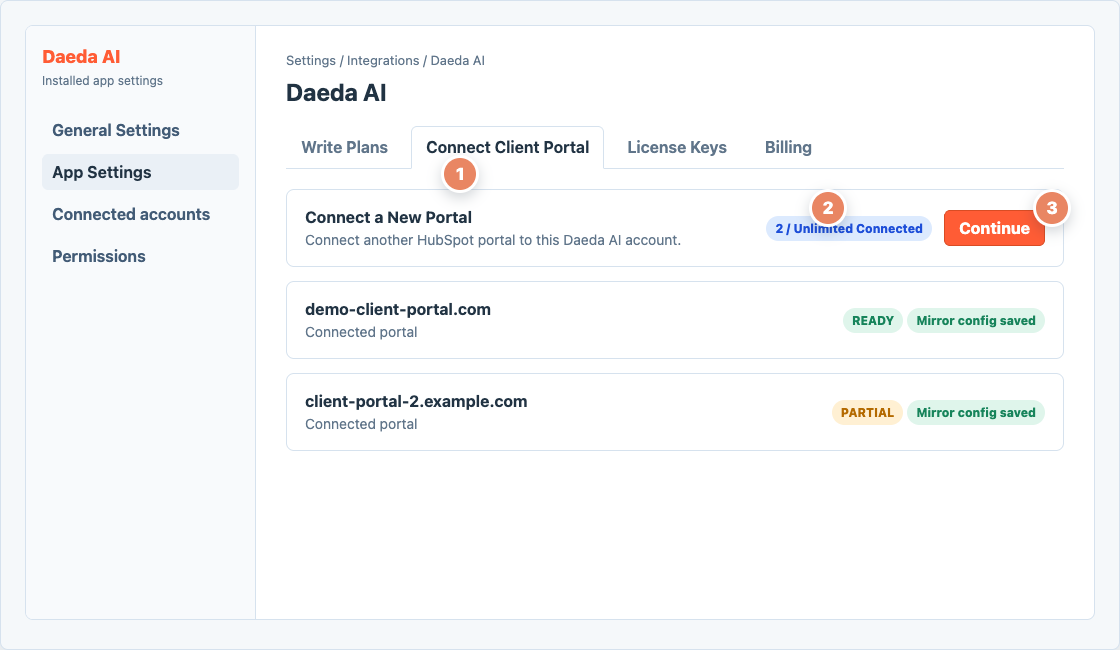
Open Connect Client Portal and choose Continue to start a new portal connection.
Use the numbered markers in the screenshot:
- Open Connect Client Portal in the Daeda AI settings.
- Check the current connected-portal allowance before adding another portal.
- Choose Continue beside Connect a New Portal to start the guided connection.
Success: The data-access table opens and the progress indicator moves to the first setup step.
2. Choose Data Access
Section titled “2. Choose Data Access”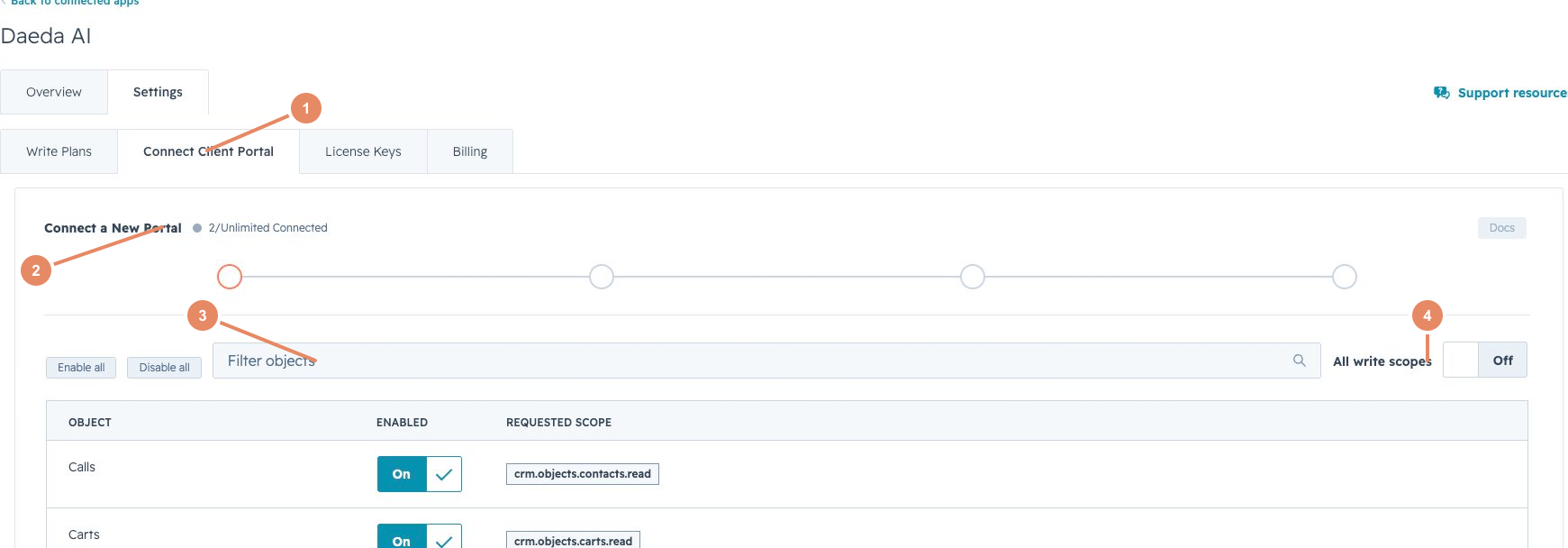
Choose only the HubSpot data categories Daeda AI needs for the work you plan to do.
Use the numbered markers in the screenshot:
- Confirm Connect Client Portal is the active settings tab.
- Confirm you are adding a new portal to the intended Daeda AI account.
- Filter the object list and enable only the data categories required for the planned work.
- Leave All write scopes off unless broad Write Plan access was deliberately approved.
Administrators who need the underlying HubSpot permission names can use Permissions And Scopes.
Success: The intended objects are enabled, unexpected objects are off, and the write-scope choice matches the team’s approval.
3. Set Data Rules
Section titled “3. Set Data Rules”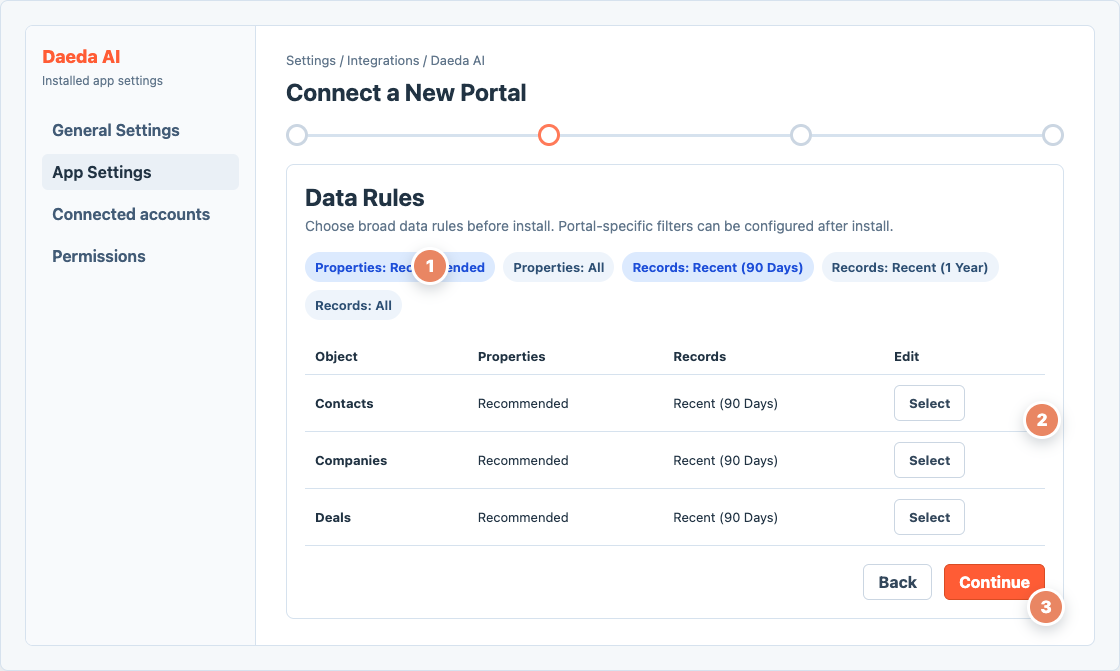
Use the recommended presets or configure individual objects before generating the install link.
Use the numbered markers in the screenshot:
- Choose a property preset. Recommended is the safest normal starting point.
- Choose a record window, or use Select to configure an individual object.
- Review the visible object rules, then choose Continue.
The defaults exclude most conversation content while allowing common RevOps analysis. Use object-level filters when you need to exclude specific properties, records, workflows, or other sensitive data.
Success: Every enabled object has an intentional property and record rule before the install link is generated.
4. Authorize The Target Portal
Section titled “4. Authorize The Target Portal”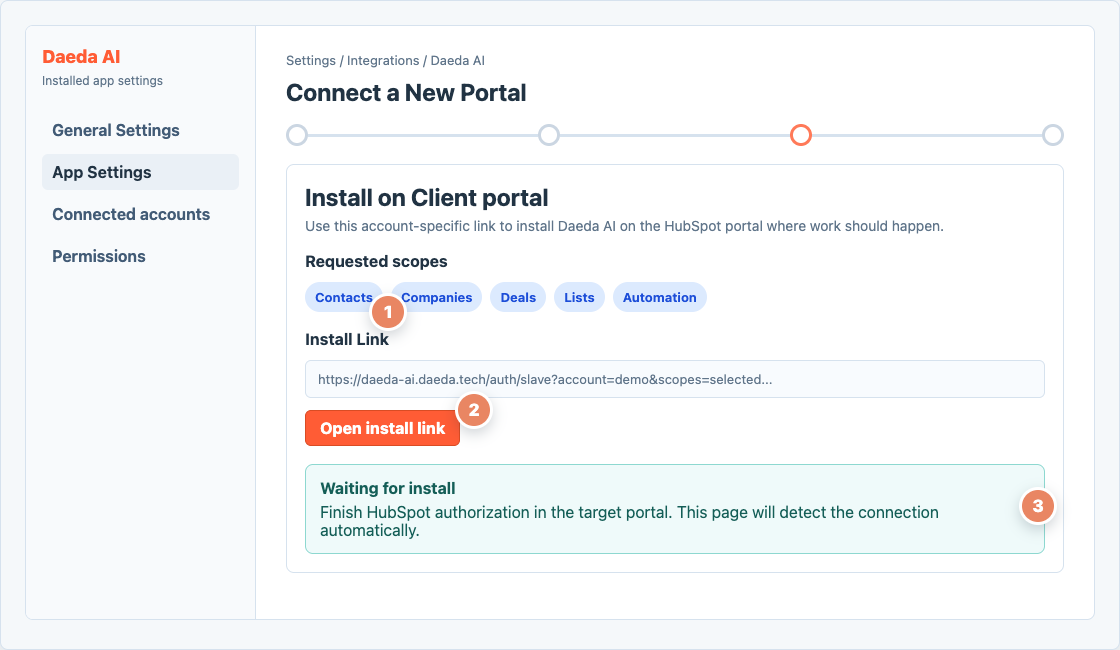
Use the generated link for this Daeda AI account, then complete HubSpot authorization in the intended portal.
Use the numbered markers in the screenshot:
- Review the requested access before opening HubSpot authorization.
- Use Open install link. The generated link is specific to this Daeda AI account.
- Keep this page open while HubSpot authorization is completed in the target portal.
Confirm the HubSpot portal name carefully before approving access. Do not replace the generated link with a normal Marketplace installation for the connected portal.
For the HubSpot permission screens themselves, follow Install Daeda AI In HubSpot.
Success: HubSpot authorization finishes and this page detects the newly installed or re-authorized portal.
5. Confirm The Connection
Section titled “5. Confirm The Connection”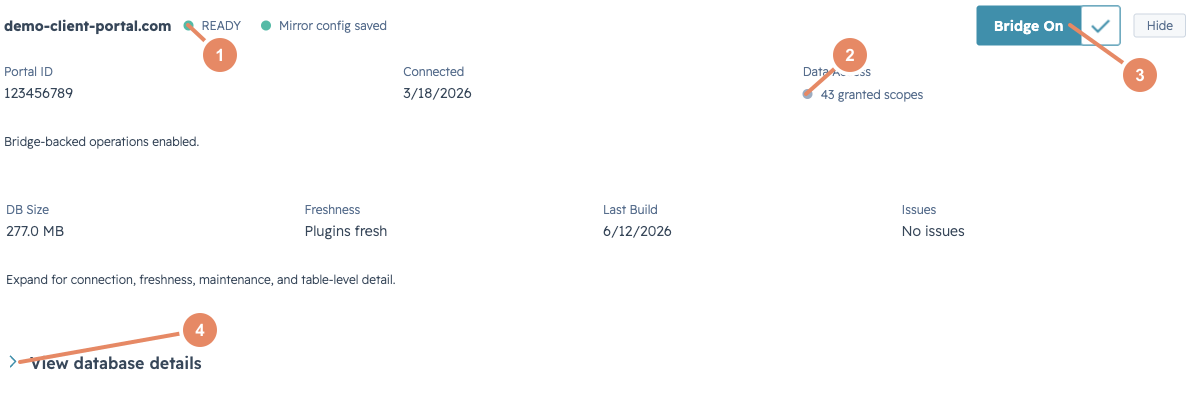
The connected portal card confirms readiness, granted access, Bridge state, and database details.
Use the numbered markers in the screenshot:
- Confirm the portal shows READY and Mirror config saved before broad investigations.
- Review the granted-access count when troubleshooting missing data.
- Enable Bridge On only if this portal should allow bridge-backed work.
- Expand database details when a build is slow, partial, or failed.
A newly connected portal can show BUILDING while Daeda AI prepares the selected data. Large portals can take longer to reach READY. You can create a license key and connect your AI app while the portal builds, but wait for READY before relying on broad investigations.
Success: The correct portal appears, its mirror configuration is saved, and its readiness state is understood.
Changing Access Later
Section titled “Changing Access Later”Adding access is normally handled by reconnecting or re-authorizing the portal. Removing previously granted HubSpot access can require a fuller reset because HubSpot permissions and already prepared data must both be addressed.
Before reducing access, review the connected portal, active draft plans, stored data, and app authorization together. Use Security And Data Handling or contact support if the correct sequence is unclear.
Next Step
Section titled “Next Step”Return to Start Here and create the license key that will connect your AI app.