
How Daeda AI Portals Work
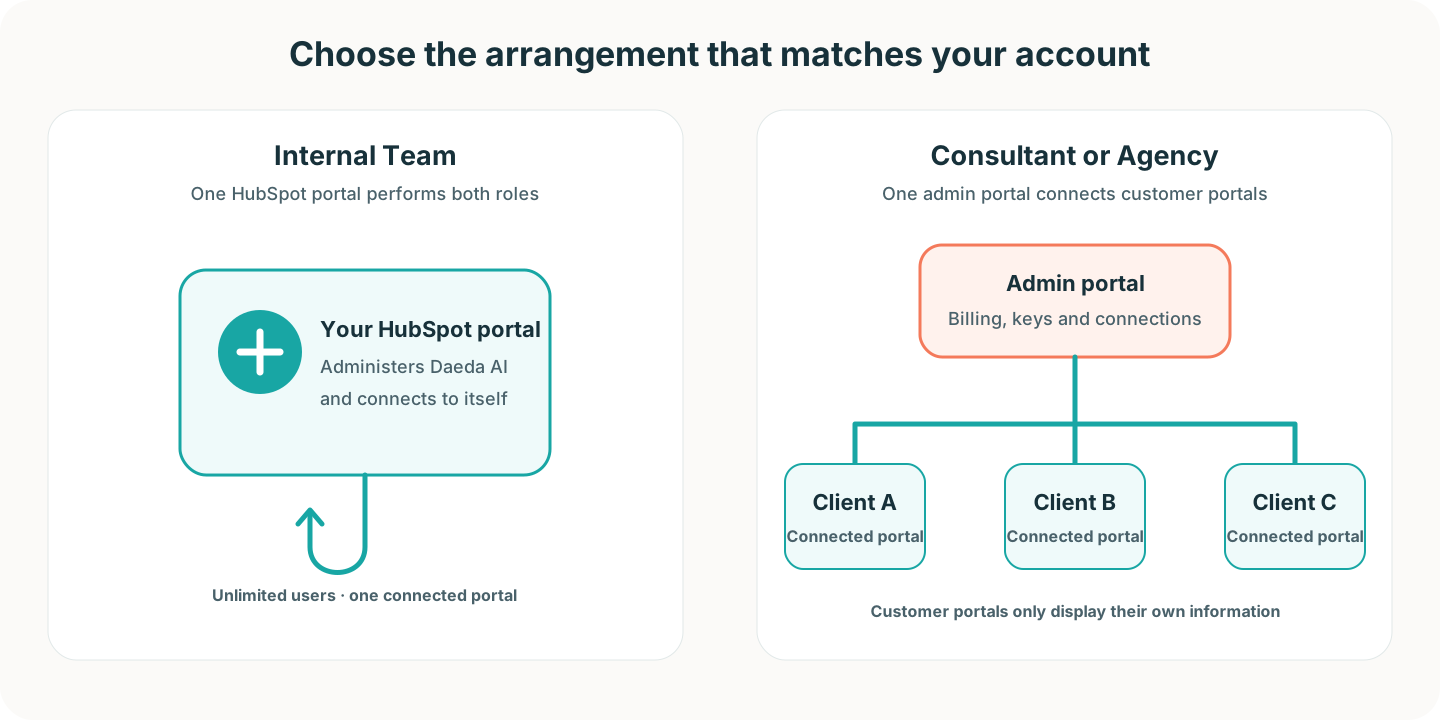
Daeda AI separates account administration from the HubSpot portals where work happens. These can be the same portal, but consultants and agencies normally keep them separate.
The Two Portal Roles
Section titled “The Two Portal Roles”| Role | What happens there |
|---|---|
| Admin portal | Manage billing, create license keys, connect portals, and see all portals attached to the Daeda AI account. The product may also call this the Master portal. |
| Connected portal | Supply the selected HubSpot data and receive approved Write Plan changes. The product may also call this a Client portal. |
A connected portal only displays information about itself. It cannot see the other customer portals managed from the admin portal.
Internal Team Setup
Section titled “Internal Team Setup”Internal Team includes unlimited users and one connected portal. The simplest arrangement is to use the same HubSpot portal in both roles:
Your HubSpot portal├── Administers Daeda AI└── Connects to itself for queries and approved changesInstall Daeda AI from the HubSpot Marketplace, then use Connect Client Portal to connect that portal to itself. The self-connection is what grants the selected data access and allows work to happen there.
Consultant Or Agency Setup
Section titled “Consultant Or Agency Setup”Consultants and agencies normally use one admin portal to manage several customer portals:
Your admin portal├── Customer portal A├── Customer portal B└── Customer portal CInstall Daeda AI in the admin portal first. For each customer, use Connect Client Portal to generate a dedicated installation link, then open that link while signed in to the intended customer portal.
Do not install a customer portal directly from the Marketplace. The generated connection link associates it with the correct Daeda AI account and records the data choices made during setup.
What Happens After Connection
Section titled “What Happens After Connection”Daeda AI begins preparing the HubSpot data you selected. The connected portal can show BUILDING during this process. Smaller portals may become ready quickly; large portals can take longer.
You can continue creating a license key and connecting your AI app while the portal builds. Wait for READY before relying on questions or plans that need broad portal context.
Success: You can identify the admin portal, the portal where work will happen, and whether the connected portal is still building or ready.
Next Step
Section titled “Next Step”Continue to Install Daeda AI In HubSpot if the admin portal is not installed yet. Otherwise, follow Connect A New Portal.