
Bridge Installation And Configuration
Use this guide when installing, connecting, updating, disabling, or troubleshooting the Daeda Bridge browser extension.
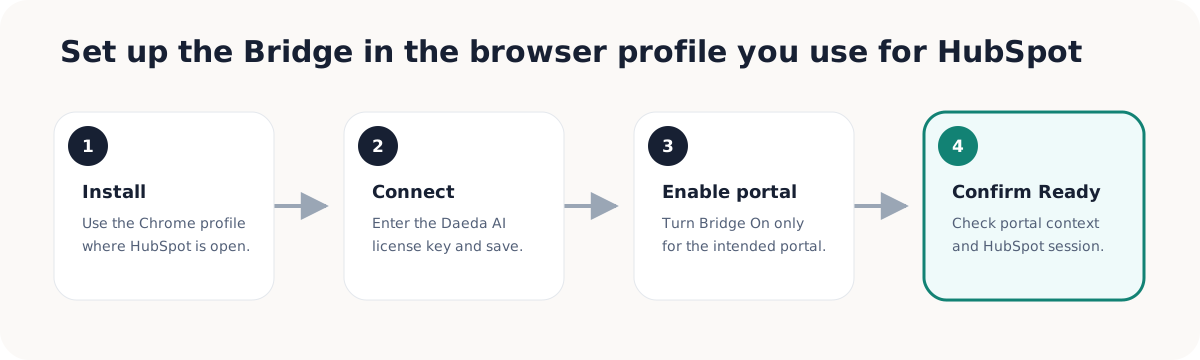
Install The Extension
Section titled “Install The Extension”Install Daeda AI Bridge from the Chrome Web Store in the browser profile where the user signs in to the target HubSpot portal. Bridge-backed actions depend on that active browser context.
After installation, open HubSpot in the same profile and confirm the user can access the target portal before executing bridge-backed plans.
Connect To Daeda AI
Section titled “Connect To Daeda AI”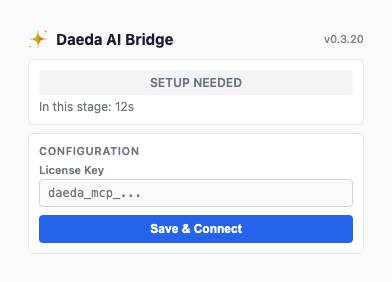
Paste the Daeda AI license key into the extension, then choose Save & Connect.
Open the extension popup and confirm connection health, portal context, request activity, and request history. The current popup panels are:
| Panel |
|---|
| Activity |
| Config Form |
| Connection |
| Error |
| Lifecycle |
| Portal Info |
| Request History |
| Session Footer |
If the popup shows an unavailable or expired session, reopen HubSpot, sign in again, and refresh the Daeda AI page before execution.
Configure Portal Access
Section titled “Configure Portal Access”
Enable Bridge On only for the connected portal that should allow bridge-backed work.
Daeda AI connected portals include a bridge toggle. Turn it on only for portals where bridge-backed execution should be allowed. The toggle is portal-specific.
Before executing a bridge-backed plan, confirm the extension portal matches the write plan target and the connected-portal toggle is enabled.
Confirm A Healthy Session
Section titled “Confirm A Healthy Session”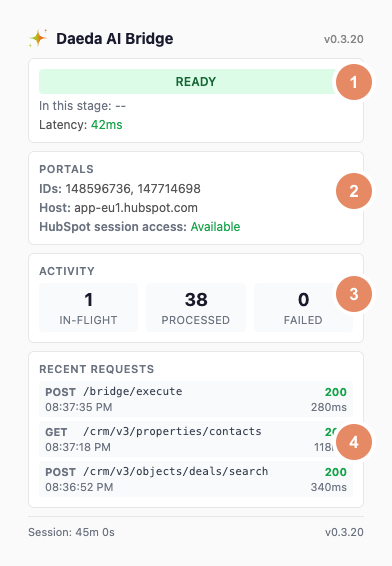
A healthy Bridge session shows Ready, the intended portal context, available HubSpot session access, and successful recent requests. Keep the target HubSpot portal open in this browser profile until the plan finishes.
Success: The popup shows Ready, the intended portal is enabled, HubSpot session access is available, and recent requests complete successfully.
Recover An Expired Session
Section titled “Recover An Expired Session”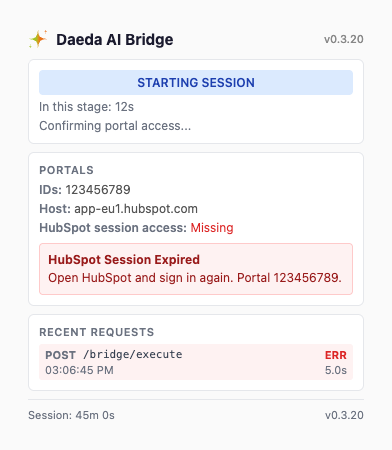
If the popup reports an expired HubSpot session, reopen the target portal, sign in again, and wait for the popup to return to Ready before retrying bridge-backed work.
Update Or Disable
Section titled “Update Or Disable”When updating the extension, refresh HubSpot and confirm the popup reconnects before executing another plan. When disabling the extension, turn off bridge-backed execution for affected portals and avoid executing plans that require browser context.
Common Configuration Issues
Section titled “Common Configuration Issues”- The extension is installed in a different browser profile from the active HubSpot session.
- The user is signed in to the wrong HubSpot portal.
- The connected-portal bridge toggle is off.
- The HubSpot session expired after the plan was reviewed.
- A browser policy blocks the extension from running on HubSpot pages.