
Daeda Bridge Extension
The Daeda Bridge extension lets Daeda AI perform supported actions that need an active HubSpot browser session. It is especially important for HubSpot tools that require the same browser context you use as an admin.
When You Need It
Section titled “When You Need It”Follow Bridge Installation And Configuration before executing plans with bridge-backed actions. The current supported-action catalog includes 37 bridge or hybrid action types.
Common bridge-backed areas include:
- CRM Views And Cards
- CTAs
- Custom Objects And Associations
- Lead Scoring
- Properties And Schema
- Reports And Dashboards
- Sales Content
- Sequences
- Workflows
Bridge-backed actions usually involve HubSpot screens or tools that require the same browser context as the admin user. Keep the target portal open until the plan has finished.
What The Extension Shows
Section titled “What The Extension Shows”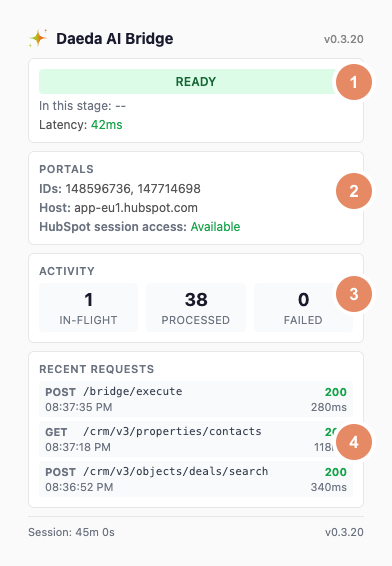
Use the numbered checks to confirm the Bridge is ready for the intended HubSpot portal.
| Panel | Use it for |
|---|---|
| Activity | Watch in-progress, completed, and failed bridge activity. |
| Config Form | Save the license key and production connection settings. |
| Connection | Confirm the extension is connected to Daeda AI. |
| Error | Read the current connection or registration problem. |
| Lifecycle | See whether the extension is waiting, connecting, registered, or retrying. |
| Portal Info | Confirm the active HubSpot portal and session context. |
| Request History | Review recent bridge requests and their outcomes. |
| Session Footer | Confirm session timing and whether HubSpot needs to be reopened. |
Use the numbered checks in the screenshot:
- Ready: the extension has connected to Daeda AI.
- Portal and session: the portal IDs and host match the intended browser session, and HubSpot session access is available.
- Activity: in-flight, processed, and failed request counts make current Bridge activity visible.
- Recent requests: successful requests show that the Bridge can communicate with HubSpot.
Portal Toggle
Section titled “Portal Toggle”Connected portals in Daeda AI include a bridge toggle. Turn it on for portals where bridge-backed operations should be allowed. Turn it off when a portal should only use non-bridge actions.
The toggle is portal-specific. Enabling the bridge for one connected portal does not grant bridge execution for every portal on the account.
Before Executing
Section titled “Before Executing”- Open the target HubSpot portal in the browser where the extension is installed.
- Confirm the extension shows a connected state.
- Confirm the portal ID or portal name matches the write plan target.
- Keep the HubSpot session active until execution finishes.
If the extension shows an expired or unavailable HubSpot session, reopen HubSpot, sign in, and refresh the Daeda AI page before running the plan.