
Lead Routing Guide
HubSpot lead assignment rules that protect ownership
Keep returning enquiries with the right owner, route new contacts to the right team, and give exceptions a clear next step. Includes a routing rules worksheet.
On this page
HubSpot lead assignment rules decide who should own an enquiry before a workflow selects a rep. Start with the relationship you want to preserve, choose a team for genuinely new work, and give anything uncertain a clear review path.
Imagine a customer submits your demo form again. Maya already owns the contact, but the form workflow rotates every submission. The enquiry lands with Leo. Nobody has broken the rotation. The workflow is answering the wrong question.
The first question is not “Who’s next?” It is “Should this contact move at all?”
Decide which ownership rule wins
Write the rules in priority order. The first matching rule decides the path; later rules should not quietly override it.
For a simple inbound sales process, that might look like this:
| Priority | What you know | What happens next |
|---|---|---|
| 1 | The contact has a valid existing owner | Keep that owner. Notify them about the new enquiry without rotating it. |
| 2 | An owner is set, but their eligibility is uncertain | Send the contact for ownership review. Do not treat an uncertain owner as an empty field. |
| 3 | The contact is unowned and your account-ownership rule has a verified match | Assign to the eligible account owner, if your business policy gives them this work. |
| 4 | The contact is unowned, has no account-ownership claim and matches exactly one sales pool | Select an eligible rep from that pool. |
| 5 | The account match or territory is ambiguous, a required value is missing, or nobody qualifies | Leave ownership unchanged and notify the named exception reviewer. |
Here, valid existing owner means someone your team has confirmed is still responsible for that relationship. It does not mean “available right now”. A rep taking an afternoon off is a different problem from a rep who has left the business.
Keep the source of truth beside each rule. Territory might come from a controlled contact property. Owner eligibility might come from a maintained roster. Neither should depend on an undocumented assumption about a free-text field.
Account ownership needs its own decision. HubSpot associations connect records; that relationship alone does not define your sales policy. Specify which associated company counts, how you resolve multiple matches and whether its owner should receive a new contact. If you cannot verify the match, send it for review instead of guessing.
- Keep the relationshipValid contact owner? Keep them. Owner uncertain? Stop for review.
- Check the account ruleUnowned contact with a verified account claim? Use that owner. Ambiguous claim? Review.
- Choose the right poolNo account claim and exactly one territory match? Select from that team.
- Guard the updateRecheck ownership. Write only when the rule still permits it and a candidate was returned.
At any unresolved step, preserve the current owner and send the enquiry to a named reviewer.
Turn the policy into a workflow
Keep the first version narrow: one contact-based enquiry trigger, one target owner property and a small number of explicit branches. That makes a surprising assignment easier to trace.
Start with enrollment and repeat enquiries
Choose the event that means a contact needs attention, such as a particular demo-form submission. Then separate notification from assignment. An owned contact can receive follow-up without entering the new-owner path.
For a dedicated first-assignment workflow, require Contact owner is unknown and keep re-enrollment off initially. If you want a wider enquiry workflow to handle owned contacts too, give them an explicit keep-owner branch that cannot fall through into rotation.
A repeat form submission is not, by itself, permission to replace an owner. Define reassignment separately, with its own reason and approval rules.
Choose the pool before the rotation action
Branch on the policy inputs first: ownership status, any verified account claim, then territory or another team-selection field. Make branches mutually exclusive where possible. Put a review path beside missing and overlapping values.
Do not begin by rotating across everyone and then try to repair the choice. A perfectly available rep in the wrong territory is still the wrong assignment.
Check what native HubSpot already covers
Start with native Rotate record to owner if you need rotation across a suitable pool. HubSpot documents it for Sales Hub or Service Hub Professional and Enterprise, with paid-user requirements. Confirm access and eligible users in your own workflow. See HubSpot’s owner-assignment reference.
Review the action’s Overwrite if [object] has an existing owner setting. For a first-assignment policy, leave overwriting disabled. Still inspect other owner-writing workflows and integrations: one action’s setting does not govern every writer in the portal.
For the action-by-action setup, use the HubSpot round robin workflow guide. The rules here decide when that recipe should run, and when it should not. To see how a rotation, territory rules and per-rep caps share out records, try the Smart Lead Simulator.
Apply availability inside the chosen pool
Once the policy has selected a team, decide which members can receive new work now. This is where availability-aware selection can help. It is not a substitute for ownership policy.
With Smart Lead & Ticket Routing’s Round Robin Assignment (Action Outputs), selection and the record update are separate steps. The action returns a result; your following branches decide whether to write the returned owner.
If your rule requires a rep to be available, not out of office and inside working hours, the v2 action supports Property Match Logic: AND. Its default OR setting means matching any selected condition is enough. Use the action version that exposes this control and check the setting explicitly.
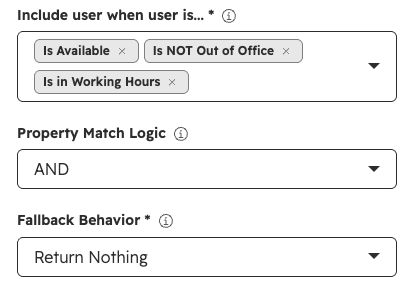
Configuration evidence only: an unsaved Action Outputs setup captured in a HubSpot test portal on 10 September 2026. No assignment was run. View full size.
For this example, set Fallback Behavior to Return Nothing. Branch on User Returned before using Assigned Owner ID in the owner update. A false result takes the exception path and skips that update; it does not clear the contact’s current owner.
The app selects an owner when the action runs. It does not automatically move an existing owner’s contacts when they go away, measure their spare capacity or reroute an unanswered enquiry. For existing work, make a separate out-of-office cover policy.
Give exceptions a person, not just a branch
“Send to manual review” is incomplete until someone owns that review. Name a role with an actual person covering it, a monitored view or list, a notification and an agreed response window.
Keep a reason with each exception: unknown territory, conflicting account match, uncertain existing owner, no eligible candidate or ownership changed during processing. The reviewer should be able to see why the workflow stopped without reconstructing every branch.
Immediately before writing, recheck that the current owner still satisfies your overwrite policy. For new-contact assignment, that means it is still unknown. If another process has claimed it, skip the update and follow the keep-owner or review rule instead.
Do not clear an existing owner to make a record fit the new-assignment path. If an inactive owner’s work must move, define that as an explicit reassignment process.
Test the policy before live enrollment
Use dedicated test contacts and a controlled workflow. Record the starting owner, matching branch, action output if used, final owner and exception notification. Check what actually happened against the expected outcome.
The cases below are a test plan, not completed test results:
| Test contact | Expected outcome under this policy | Evidence to check |
|---|---|---|
| Returning enquiry with a valid owner | Keep the owner; notify them | Unchanged owner and the follow-up notification |
| Contact owned by an inactive or unverified user | Review; no automatic replacement | Review reason, notification and unchanged owner |
| Unowned contact with one verified account-ownership claim | Use the eligible account owner | Association used, matching branch and final owner |
| Unowned contact with one territory match and an eligible pool | Assign within that pool | Branch, selected candidate and final owner |
| Missing or ambiguous territory/account match | Review; no rotation | Review reason and skipped assignment path |
| Valid pool with no eligible rep | Review; skip the owner update | No-user result, unchanged owner and notification |
| Repeat enquiry or owner changed after enrollment | Do not blindly rotate again | Enrollment history, latest ownership check and any skipped update |
Test both the normal route and the exception. A successful assignment does not show that an empty pool, repeat enquiry or conflicting update is safe.
After rollout, track assignment time and actual first response separately. An owner property changing is not evidence that somebody followed up. Also track exception volume, time spent waiting for review and unexpected reassignments. Compare like-for-like enquiry types; changing the pool or eligibility rules can change the counts without changing performance.
Write your first rules before adding more branches
Start with one inbound use case. Agree on who keeps existing relationships, which new contacts belong to each team and who handles uncertainty. Then build only the branches needed to express that policy.
Use the filled example worksheet (CSV) to see the policy written out, or the blank rules worksheet (CSV) to define your own. Both include priority, condition, source of truth, destination, overwrite policy, exception handler and test case. The example contains fictional roles and expected outcomes, not customer data or measured results.
The example’s numbered rules choose the path. Its final two rows are guards after selection and before an owner update, not lower-priority rules that can be skipped once a pool matches. Replace the reviewer role with a real person and backup before using your version.
If native rotation meets those rules, use it. If the chosen pool also needs availability filtering and an owner output you can inspect before updating, see the Smart Lead & Ticket Routing walkthrough.
For the surrounding enrollment and workflow controls, explore the workflow reliability guides.
Sources and action fields checked on 10 September 2026. Verify subscription, user eligibility and action-version requirements in your portal before enabling the workflow.
A few common questions
Frequently asked questions
Can I assign new enquiries without changing the current contact owner?
Yes. Separate already-owned contacts from the first-assignment path, then check ownership again before an update. For native rotation, review the Overwrite if the record has an existing owner setting. These guards reduce accidental reassignment, but do not lock out simultaneous updates from another workflow or integration.
Should a repeat enquiry enter the assignment workflow again?
Not automatically. A repeat enquiry may need a notification or follow-up task without a new owner. Keep re-enrollment off for a first-assignment workflow unless you have an explicit policy for repeat enquiries, including which owners may be replaced and who handles exceptions.
Does changing the contact owner also change the company, deal or Lead owner?
Do not assume it does. This guide targets the Contact owner property. Related records and HubSpot's separate Lead object have their own ownership rules, actions or sync settings. Decide which record should change and inspect any automation or synchronization that could also update it.
