
Lead Routing Guide
HubSpot Round Robin Workflow: Setup and Availability
Set up HubSpot round robin lead assignment, choose native or availability-aware routing, and handle empty pools without overwriting the wrong owner.
On this page
To build a HubSpot round robin workflow, choose the records that need assigning, select an owner pool, and decide what should happen when nobody qualifies. The rotation is the easy part. Keeping a lead with someone who can work it takes a few explicit rules.
Start with native HubSpot. Add Smart Lead & Ticket Routing when you need availability-aware selection across contacts, companies, deals or tickets, or want to check the selected owner before writing it back.
Which routing action should you use?
HubSpot’s workflow action reference lists Rotate record to owner under Sales Hub and Service Hub Professional and Enterprise, with eligible paid users. Check the action in the workflow type you intend to use.
For tickets, HubSpot’s ticket routing guide documents availability-aware assignment, round robin and load-balanced distribution on Service Hub Professional or Enterprise. Seat requirements apply, and the availability option is described as a beta. This is a real native option, not a gap that always needs an app.
| Your requirement | Starting point |
|---|---|
| Rotate new records between eligible owners | Native Rotate record to owner |
| Assign tickets using availability or ticket load | Check native ticket routing and your account’s options |
| Apply availability rules to contact, company or deal assignment | Check your native action; consider Smart Lead & Ticket Routing if it does not cover the rule |
| Inspect an owner output before updating the record | Daeda’s Round Robin Assignment (Action Outputs) |
A contact-routing example: new enquiries, available reps
Suppose three reps share new demo enquiries. An enquiry already owned by someone should stay with them. New enquiries should go to a rep who is available, not out of office and inside working hours. If nobody qualifies, leave the record untouched and alert the team lead.
1. Protect records that already have an owner
Create a contact-based workflow for your demo-enquiry trigger and require Contact owner is unknown. Keep re-enrollment off for this first-assignment workflow unless you have a specific reassignment policy.
Check ownership again immediately before the assignment step. Another workflow or a teammate may have claimed the contact since enrollment. If it is now owned, exit this path without rotating it. That check reduces unintended overwrites; it is not a transactional lock against simultaneous updates.
2. Select the candidate pool
Add Round Robin Assignment (Action Outputs) and select the three users, or the relevant HubSpot team. Keep territory or product-line branching before this step so each branch has the right pool.
The app’s workflow action. Use the Action Outputs variant for this example; the direct-update variant writes ownership itself.
3. Make the availability rule explicit
Select Is Available, Is NOT Out of Office and Is in Working Hours. Set Property Match Logic to AND so all three conditions must hold. The default OR setting would admit anyone matching just one condition.
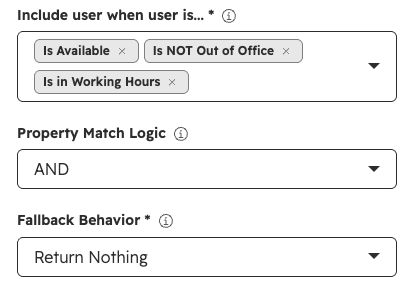
The guide’s availability and fallback settings, captured from an unsaved Action Outputs configuration in a HubSpot test portal on 10 September 2026. No assignment was run. View full size.
Keep HubSpot’s user settings current. The action reads those signals; it does not infer leave from a calendar or promise that an available rep has spare capacity.
4. Branch on the result before updating ownership
Set Fallback Behavior to Return Nothing. After the action, branch on User Returned:
- True: use Assigned Owner ID in the subsequent owner-property update. Set an assignment date property and, if useful, keep Assigned User Name and Skipped Users Count for investigation.
- False: do not run the owner update. Send an internal notification to a named team lead and put the contact into a view or list that someone checks.
What happens when the pool is empty?
For Daeda’s Action Outputs variant, the three configured outcomes are:
| Fallback setting | Action result | What your workflow must handle |
|---|---|---|
| Return Nothing | No owner is returned | Branch around the owner update and handle the unassigned work |
| Return Selected User | The predefined fallback user is returned | Choose a real cover user; this fallback bypasses the normal availability filter |
| Fail Action | The action reports failure with no owner | Monitor the failure and guard subsequent steps; do not assume the workflow stops |
Returning nothing does not clear an existing owner. For the native ticket action’s Assign to available users only setting, HubSpot documents an unassigned result when everyone is away. Do not generalise either behaviour to every rotation action. Check the action, overwrite setting and workflow history.
Test the exceptions, not just a successful assignment
Use a test workflow and dedicated contacts. Record the action outputs and final owner for each case:
- All three reps qualify: repeated assignments use the eligible pool.
- One rep is away: that rep is excluded by the AND rule.
- One rep is out of office or outside working hours: that rep is excluded even if another signal says available.
- Nobody qualifies: User Returned is false and the owner update is skipped.
- The contact already has an owner: the guard exits without reassignment.
- The same contact submits another enquiry: it is not unintentionally rotated again.
Use the out-of-office guide for a separate decision: whether existing work should wait, receive temporary cover, or be redistributed. New-lead rotation alone does not implement that policy.
Measure assignments and follow-up separately
Track owner changes, assignment dates, fallback volume and time to first response. Unequal counts can reflect eligibility, different pools or repeat enrollment; they do not automatically prove a broken rotation. Equally distributed leads can still go unworked.
Smart Lead & Ticket Routing has two options. Its Round Robin action is a simple rotation. Advanced Routing profiles add weighted distribution, HubSpot team pools, rules on record properties such as territory, per-rep caps on new assignments or open records, and optional reassignment when the assigned rep logs no activity within a set time. They do not redistribute records a rep already holds. Routing also does not control workflow execution rate; that is a separate job for Daeda Throttle. To see weighting and catch-up in action, try the Smart Lead Simulator.
Start with one pool
Build one assignment path, make the empty-pool result visible, and test it before extending the rules. If native HubSpot covers that path, use it.
If you need the output-first example above, see Smart Lead & Ticket Routing’s walkthrough and plans. For a shorter buying decision, use the native routing comparison.
Native references checked 10 September 2026. Available controls depend on your HubSpot subscription, seats and enabled features.
A few common questions
Frequently asked questions
Can HubSpot do round robin assignment natively?
Yes. Start with Rotate record to owner if its subscription, seat and object requirements fit. Ticket workflows have additional availability and distribution controls on qualifying Service Hub plans.
Does round robin skip out-of-office owners?
That depends on the action and its settings. Check native availability controls in your portal. Smart Lead & Ticket Routing can filter candidates using HubSpot availability, out-of-office and working-hours signals before selecting an owner.
What happens when nobody is available?
For Daeda's Action Outputs action, choose Return Nothing, Return Selected User or Fail Action. Return Nothing does not clear an existing record owner; subsequent workflow steps decide whether to update ownership. Native actions have their own documented behaviour.
Does the app rebalance existing leads automatically?
No. It selects an owner when the action runs and does not move existing work when a rep goes away. Advanced Routing profiles can cap each rep's new or open records and reassign a lead when the assigned rep logs no activity within a set time.
